Reshine Controls
Mouse, keyboard, and gamepad bindings for a smooth attic workflow.
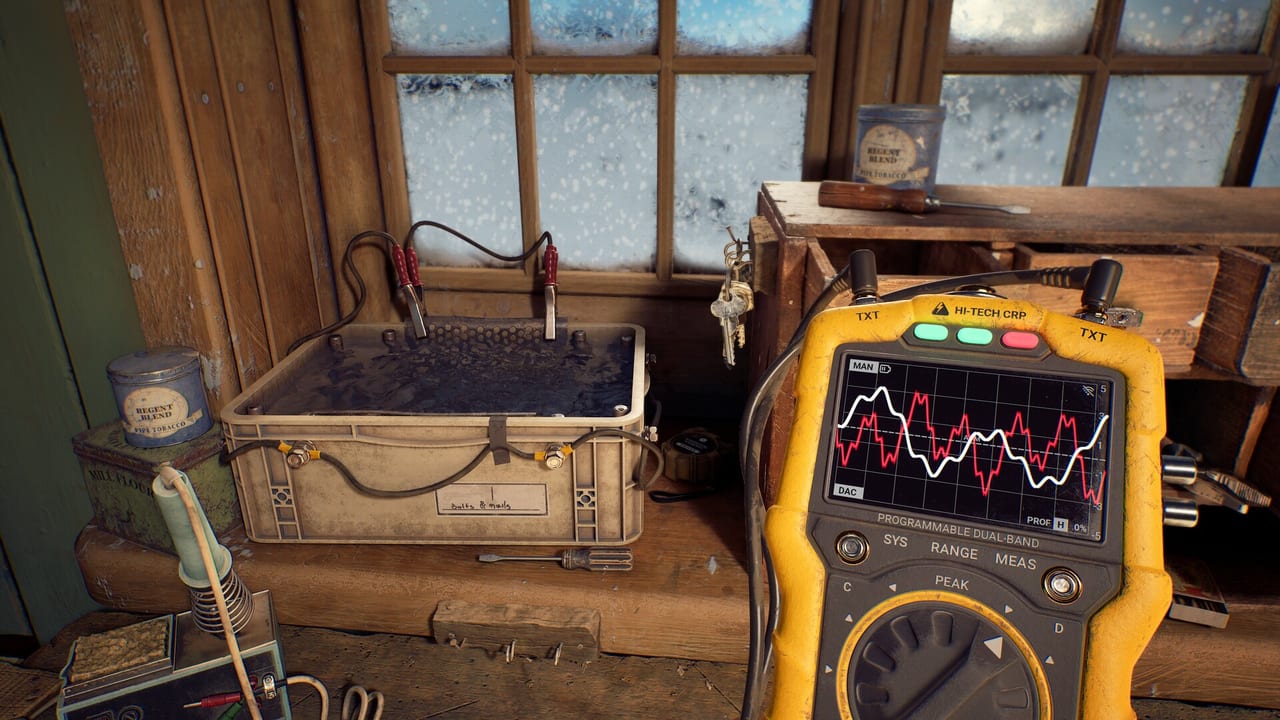
Reshine keeps the interface minimal so your attention stays on the antique. Still, knowing the default mouse, keyboard, and controller habits saves minutes on every restoration. This guide summarizes the bindings demonstrated in the Steam demo and official FAQ notes about full controller and Steam Deck support.
Mouse and keyboard essentials
- Rotate object: hold the dedicated rotate control and move the mouse (demo onboarding text commonly uses a hold-and-drag pattern).
- Rotate camera: hold right mouse button and move the mouse to orbit around the workbench view.
- Select / disassemble part: left click highlighted components, screws, and panels.
- Zoom: scroll or the demo’s zoom binding when you need a closer look at fine fasteners.
- Electrolysis match: reshape curves with left/right click, shift frequency with the scroll wheel or arrow keys, then confirm.
- UV light: often bound to F in demo builds — tap it whenever a stage stalls.
- Laser / sandblast motion: click-and-drag in slow, overlapping strokes; speed matters more than button complexity.
If text ever appears stuck in English during paint prompts, update to the latest demo patch — localization fixes for phrases like “Choose paint color” shipped in October hotfixes.
Controller support
Quite OK Games confirmed full controller support for PC and handheld play. On gamepad you should expect:
- Face buttons for confirm / interact
- Sticks for camera orbit and cursor or tool aiming
- D-pad or bumpers for electrolysis frequency adjustments (demo notes mention D-pad alongside A/D and arrows)
- A vibration toggle in settings if rumble distracts during delicate laser work
A demo patch also stopped gamepad vibration from triggering while you play with mouse and keyboard — useful for hybrid setups.
Electrolysis on pad vs mouse
Many players find waveform matching easier with a mouse scroll wheel. On controller, use the documented frequency controls and take an extra second to align peaks. There is no combat timing window; accuracy beats speed. If electrolysis feels like busywork, enable the skip setting added in demo patches and keep the rest of the restoration tactile.
Laser cleaning comfort
Laser tools reward slow linear motion. On mouse, reduce DPI or lower in-game sensitivity if your hand jitters. On controller, soften stick sensitivity and enable any laser rotation fix available in settings so the beam tracks predictably. Gaps in the cleaned path almost always mean you moved too fast, not that the tool failed.
Steam Deck specifics
Reshine is Steam Deck Verified: default controller configuration covers functionality, Deck glyphs appear, and text remains legible. Some Deck users still prefer a Bluetooth mouse for electrolysis and fine laser lines. Read the dedicated Steam Deck page for performance and comfort tips.
Accessibility and comfort options
Official store features list adjustable text size and camera comfort options alongside Steam Achievements and Steam Cloud. Explore the settings menu early — turning off vibration, skipping electrolysis, or fixing laser rotation can make long restoration sessions easier on the hands.
Practice routine
- Boot the compass from the Demo Walkthrough and practice camera orbit until fasteners are easy to find.
- Complete one electrolysis match deliberately using only the scroll wheel, then one using only arrows.
- Clean a metal face with the laser at half your normal speed; note how fewer gaps appear.
- Toggle UV after every major cleaning stage until it becomes habit.
- Return to How to Restore for stage order context, or Getting Started if you are brand new.
Once the controls feel invisible, Reshine’s attic fantasy clicks: rain in the background, antique in the foreground, and your hands doing careful work without fighting the UI.
Frequently Asked Questions
Quick answers to the most common questions.
Does Reshine support controllers on PC?
Yes. Official FAQ and store features confirm full controller support for PC and handheld devices, including Steam Deck Verified play.
How do I match electrolysis waveforms?
Use left and right click to reshape the curve, scroll wheel or arrow keys to change frequency, then confirm when the patterns align.
What key activates the UV light?
Demo builds commonly use F for UV inspection. Check on-screen prompts if your layout differs after a patch.